The Microsoft Agent Framework (MAF)
is an open-source, multi-language framework for building, orchestrating, and
deploying AI agents. Since its
preview announcement,
the framework has added a workflow programming model that lets you compose
multiple agents and other units of work into multi-step pipelines. You define
individual steps called executors, wire them into a directed graph using a
workflow builder, and the framework handles execution, data flow between
steps, and error propagation. Workflows can model sequential chains, parallel
fan-out/fan-in patterns, conditional branching, human-in-the-loop approvals,
and more.
The core workflow package includes a lightweight in-process runner that
executes workflows entirely in memory. It’s perfect for getting started
quickly and for local development. In this post, we’ll start by building a
simple workflow in a .NET console app, then progressively add durability,
parallel AI agents, and Azure Functions hosting.
The Workflow Programming Model
To get started, create a new console app project and add the following NuGet packages:
dotnet add package Microsoft.Agents.AI
dotnet add package Microsoft.Agents.AI.Workflows
Let’s start with the core building blocks of a MAF workflow.
Executors
An Executor is the fundamental unit of work. It receives a typed input,
processes it, and produces output. You create one by subclassing
Executor<TInput, TOutput>:
using Microsoft.Agents.AI.Workflows;

internal sealed class OrderLookup()
    : Executor<OrderCancelRequest, Order>("OrderLookup")
{
    public override async ValueTask<Order> HandleAsync(
        OrderCancelRequest message,
        IWorkflowContext context,
        CancellationToken cancellationToken = default)
    {
        // Simulate looking up an order by ID
        await Task.Delay(TimeSpan.FromMilliseconds(100), cancellationToken);

        return new Order(
            Id: message.OrderId,
            OrderDate: DateTime.UtcNow.AddDays(-1),
            IsCancelled: false,
            CancelReason: message.Reason,
            Customer: new Customer(
                Name: "Jerry", Email: "jerry@example.com"));
    }
}

internal sealed class OrderCancel()
    : Executor<Order, Order>("OrderCancel")
{
    public override async ValueTask<Order> HandleAsync(
        Order message,
        IWorkflowContext context,
        CancellationToken cancellationToken = default)
    {
        await Task.Delay(TimeSpan.FromMilliseconds(200), cancellationToken);
        return message with { IsCancelled = true };
    }
}

internal sealed class SendEmail()
    : Executor<Order, string>("SendEmail")
{
    public override ValueTask<string> HandleAsync(
        Order message,
        IWorkflowContext context,
        CancellationToken cancellationToken = default)
    {
        return ValueTask.FromResult(
            $"Cancellation email sent for order {message.Id} "
            + $"to {message.Customer.Email}.");
    }
}

internal sealed record OrderCancelRequest(string OrderId, string Reason);
internal sealed record Order(
    string Id, DateTime OrderDate, bool IsCancelled,
    string? CancelReason, Customer Customer);
internal sealed record Customer(string Name, string Email);
The generic type parameters define each executor’s contract: TInput is
what it receives from the previous step (or the workflow’s initial input),
and TOutput is what it passes downstream. The string in the base
constructor (e.g., "OrderLookup") is the executor’s unique ID within
the workflow.
WorkflowBuilder
The WorkflowBuilder wires executors into a directed graph. You define
edges between executors to control the flow of data, and the builder produces
an immutable Workflow object. Here is what the CancelOrder workflow graph
looks like:
OrderLookup ──► OrderCancel ──► SendEmailOrderLookup orderLookup = new();
OrderCancel orderCancel = new();
SendEmail sendEmail = new();
Workflow cancelOrder = new WorkflowBuilder(orderLookup)
.WithName("CancelOrder")
.WithDescription("Cancel an order and notify the customer")
.AddEdge(orderLookup, orderCancel)
.AddEdge(orderCancel, sendEmail)
.Build();The TOutput of each executor must match the TInput of the executor
it flows into, and the framework enforces this at compile time.
Running In-Process
The quickest way to run a workflow is in-process with
InProcessExecution.RunStreamingAsync. This returns a StreamingRun
that emits events as each step completes:
var cancelRequest = new OrderCancelRequest(
OrderId: "123", Reason: "Wrong color");
await using StreamingRun run =
await InProcessExecution.RunStreamingAsync(
cancelOrder, input: cancelRequest);
await foreach (WorkflowEvent evt in run.WatchStreamAsync())
{
if (evt is ExecutorCompletedEvent completed)
{
Console.WriteLine(
$"{completed.ExecutorId}: {completed.Data}");
}
}This is all it takes to run a workflow. No external dependencies, no
infrastructure setup, just a .NET console app. Run it with:
dotnet runMaking Workflows Durable
The in-process runner executes everything in memory, so if the process
exits (whether from a crash, a restart, or simply reaching the end of a
long-running step), all workflow state is lost. Real-world AI agent
workflows often need to survive process restarts, run for extended
periods, and be observable from external tooling. The
Microsoft.Agents.AI.DurableTask package adds all of this to any MAF
workflow without changing the workflow definition. It is powered by the
Durable Task tech stack.
Install the package:
dotnet add package Microsoft.Agents.AI.DurableTask --prereleaseThe durable runtime provides:
- Stateful, durable execution: workflows survive process restarts
and failures - Automatic checkpointing: progress is saved after each step
- Distributed execution: executors in a workflow can run across
different machines. One executor might be running on one VM while
another executor in the same workflow runs on a completely different
one. The Durable Task Scheduler coordinates them. - Long-running orchestrations: workflows can run for minutes, hours,
or even days - Observability: built-in dashboard for monitoring and managing
workflow executions
Running the DTS Emulator
The durable runtime needs a backend to store workflow state and coordinate
execution. The
Durable Task Scheduler (DTS)
serves this role. It persists checkpoints, manages orchestration history,
and provides a dashboard for monitoring runs. For local development, you
can run the DTS emulator in Docker with a single command:
docker run -d --name dts-emulator
-p 8080:8080 -p 8082:8082
mcr.microsoft.com/dts/dts-emulator:latest- Port 8080: Scheduler endpoint (used by the app)
- Port 8082: Dashboard UI (open
http://localhost:8082in your
browser)
A Durable Console App
To enable durability, add the following NuGet packages to your project:
dotnet add package Microsoft.Agents.AI.DurableTask --prerelease
dotnet add package Microsoft.DurableTask.Client.AzureManaged
dotnet add package Microsoft.DurableTask.Worker.AzureManaged
dotnet add package Microsoft.Extensions.HostingNotice that the workflow definition doesn’t change. You use the same
WorkflowBuilder code. The only difference is how you host the workflow.
Instead of InProcessExecution.RunStreamingAsync, you configure a .NET
Generic Host with ConfigureDurableWorkflows:
using Microsoft.Agents.AI.DurableTask;
using Microsoft.Agents.AI.DurableTask.Workflows;
using Microsoft.Agents.AI.Workflows;
using Microsoft.DurableTask.Client.AzureManaged;
using Microsoft.DurableTask.Worker.AzureManaged;
using Microsoft.Extensions.DependencyInjection;
using Microsoft.Extensions.Hosting;
string dtsConnectionString =
Environment.GetEnvironmentVariable(
"DURABLE_TASK_SCHEDULER_CONNECTION_STRING")
?? "Endpoint=http://localhost:8080;TaskHub=default;Authentication=None";
// Same workflow definition as before
OrderLookup orderLookup = new();
OrderCancel orderCancel = new();
SendEmail sendEmail = new();

Workflow cancelOrder = new WorkflowBuilder(orderLookup)
    .WithName("CancelOrder")
    .WithDescription("Cancel an order and notify the customer")
    .AddEdge(orderLookup, orderCancel)
    .AddEdge(orderCancel, sendEmail)
    .Build();
// Host it with the durable runtime
IHost host = Host.CreateDefaultBuilder(args)
.ConfigureServices(services =>
{
services.ConfigureDurableWorkflows(
workflowOptions =>
workflowOptions.AddWorkflow(cancelOrder),
workerBuilder: builder =>
builder.UseDurableTaskScheduler(dtsConnectionString),
clientBuilder: builder =>
builder.UseDurableTaskScheduler(dtsConnectionString));
})
.Build();
await host.StartAsync();
try
{
IWorkflowClient workflowClient =
host.Services.GetRequiredService<IWorkflowClient>();
OrderCancelRequest request = new(
OrderId: "12345", Reason: "Wrong color");
Console.WriteLine(
$"Starting workflow for order '{request.OrderId}'...");
IAwaitableWorkflowRun run =
(IAwaitableWorkflowRun)await workflowClient
.RunAsync(cancelOrder, request);
Console.WriteLine($"Workflow started with run id: {run.RunId}");
string? result = await run.WaitForCompletionAsync<string>();
Console.WriteLine($"Workflow completed. {result}");
}
finally
{
await host.StopAsync();
}ConfigureDurableWorkflows registers the workflow with the Durable Task
runtime, maps each executor to a durable activity, and wires up the
orchestration. The IWorkflowClient provides a clean API for starting
runs and waiting for results.
Once the workflow completes, open the DTS Dashboard at
http://localhost:8082 to inspect the run, see executor timelines, and
view inputs/outputs for each step. Under the hood, each executor in your
workflow becomes a durable activity, named with a dafx- prefix in the
dashboard (e.g., dafx-OrderLookup, dafx-OrderCancel, dafx-SendEmail).
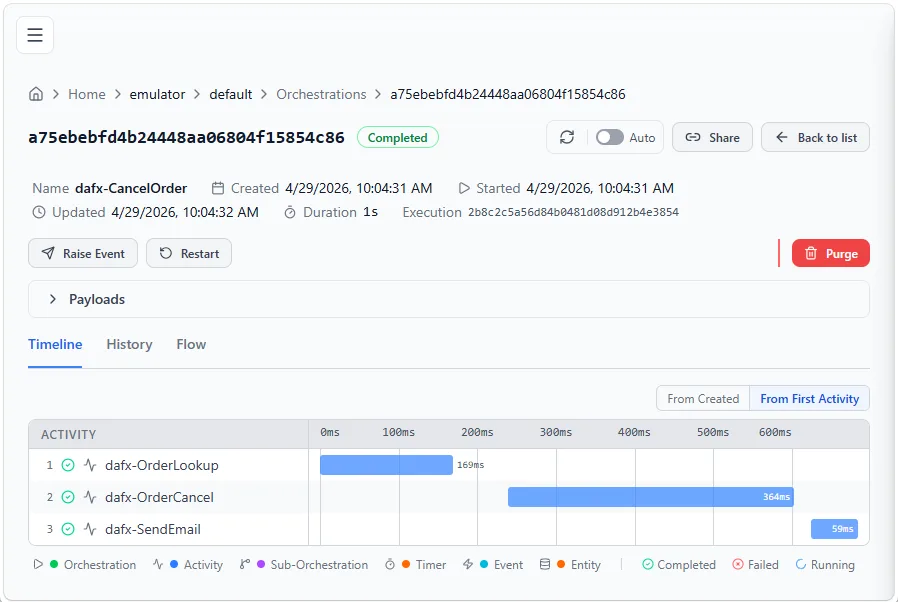
To summarize: same workflow definition, different runtime. Swap the
host, and your workflow gains durability, checkpointing, observability,
and distributed execution, with no changes to the executor code.
Fan-Out / Fan-In with AI Agents
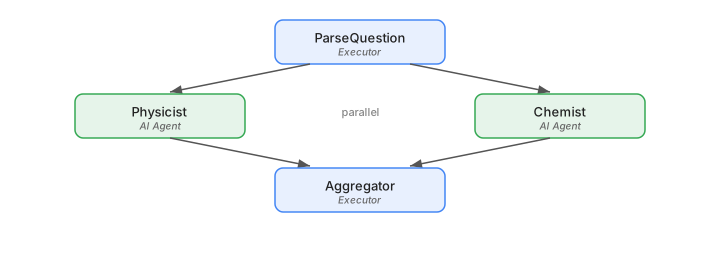
When you need multiple agents to process the same input concurrently,
use the fan-out / fan-in pattern. AddFanOutEdge sends a message
to multiple executors in parallel, and AddFanInBarrierEdge waits for
all of them to complete before proceeding.
MAF supports using AI agents directly as executors. The
AsAIAgent extension method creates an executor from a chat client and
system prompt. Since this sample uses Azure OpenAI, set the following
environment variables before running:
| Variable | Example value |
|---|---|
AZURE_OPENAI_ENDPOINT |
https://<your-resource>.cognitiveservices.azure.com |
AZURE_OPENAI_DEPLOYMENT |
gpt-4o |
Note that this sample uses ConfigureDurableOptions instead of
ConfigureDurableWorkflows. This is a more general API that gives you
access to both options.Workflows and options.Agents, making it
possible to register standalone AI agents alongside workflows in the
same host.
using Azure.AI.OpenAI;
using Azure.Identity;
using Microsoft.Agents.AI;
using Microsoft.Agents.AI.DurableTask;
using Microsoft.Agents.AI.DurableTask.Workflows;
using Microsoft.Agents.AI.Workflows;
using Microsoft.DurableTask.Client.AzureManaged;
using Microsoft.DurableTask.Worker.AzureManaged;
using Microsoft.Extensions.DependencyInjection;
using Microsoft.Extensions.Hosting;
using OpenAI.Chat;

string dtsConnectionString =
    Environment.GetEnvironmentVariable(
        "DURABLE_TASK_SCHEDULER_CONNECTION_STRING")
    ?? "Endpoint=http://localhost:8080;TaskHub=default;Authentication=None";
string endpoint =
    Environment.GetEnvironmentVariable("AZURE_OPENAI_ENDPOINT")
    ?? throw new InvalidOperationException(
        "AZURE_OPENAI_ENDPOINT is not set.");
string deploymentName =
    Environment.GetEnvironmentVariable("AZURE_OPENAI_DEPLOYMENT")
    ?? throw new InvalidOperationException(
        "AZURE_OPENAI_DEPLOYMENT is not set.");

AzureOpenAIClient openAiClient = new(
    new Uri(endpoint), new AzureCliCredential());
ChatClient chatClient = openAiClient.GetChatClient(deploymentName);

// AI agents as executors
AIAgent physicist = chatClient.AsAIAgent(
    "You are a physics expert. Be concise (2-3 sentences).",
    "Physicist");
AIAgent chemist = chatClient.AsAIAgent(
    "You are a chemistry expert. Be concise (2-3 sentences).",
    "Chemist");

ParseQuestionExecutor parseQuestion = new();
AggregatorExecutor aggregator = new();

// Build workflow: ParseQuestion -> [Physicist, Chemist] -> Aggregator
Workflow workflow = new WorkflowBuilder(parseQuestion)
    .WithName("ExpertReview")
    .AddFanOutEdge(parseQuestion, [physicist, chemist])
    .AddFanInBarrierEdge([physicist, chemist], aggregator)
    .Build();

IHost host = Host.CreateDefaultBuilder(args)
    .ConfigureServices(services =>
    {
        // ConfigureDurableOptions is the more general sibling of
        // ConfigureDurableWorkflows. It gives access to both
        // options.Workflows and options.Agents, so you can register
        // standalone AI agents alongside workflows in the same host.
        services.ConfigureDurableOptions(
            options => options.Workflows.AddWorkflow(workflow),
            workerBuilder: builder =>
                builder.UseDurableTaskScheduler(dtsConnectionString),
            clientBuilder: builder =>
                builder.UseDurableTaskScheduler(dtsConnectionString));
    })
    .Build();

await host.StartAsync();

try
{
    IWorkflowClient workflowClient =
        host.Services.GetRequiredService<IWorkflowClient>();

    IAwaitableWorkflowRun run =
        (IAwaitableWorkflowRun)await workflowClient
            .RunAsync(workflow, "Why is the sky blue?");

    Console.WriteLine($"Run ID: {run.RunId}");
    string? result = await run.WaitForCompletionAsync<string>();
    Console.WriteLine($"Workflow completed!n{result}");
}
finally
{
    await host.StopAsync();
}
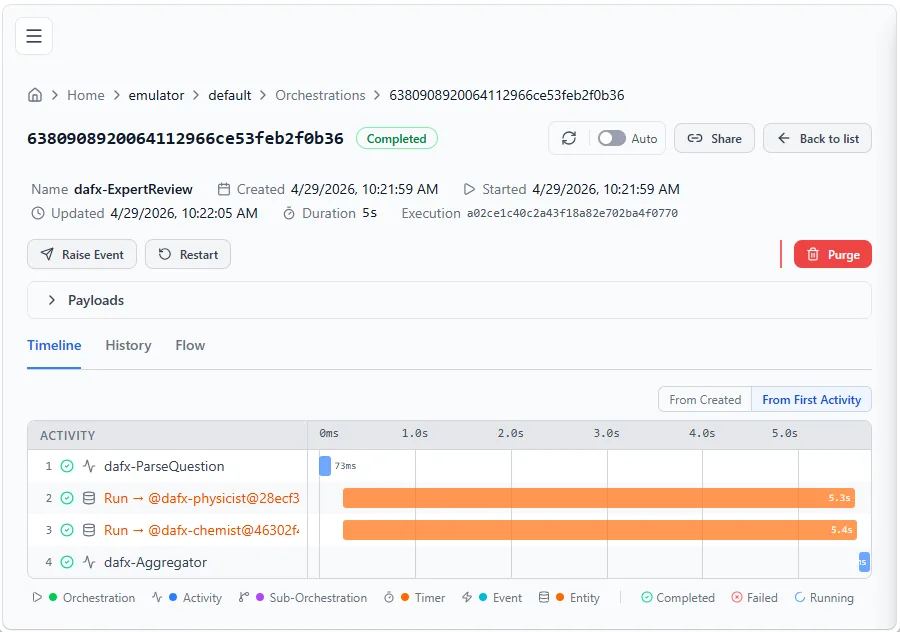
The ParseQuestionExecutor validates the input, both AI agents run
in parallel against the Durable Task Scheduler, and the
AggregatorExecutor combines their responses. Because this runs on
the distributed runtime, the Physicist agent could be executing on one
VM while the Chemist agent runs on another. Each agent’s response is
checkpointed, so if the process restarts mid-flight, completed agents
don’t re-execute.
You can see the parallel execution in the DTS Dashboard:
Hosting on Azure Functions
Now that you’ve seen durable workflows running in console apps, let’s
take them to the cloud. The
Microsoft.Agents.AI.Hosting.AzureFunctions package bridges MAF
workflows with the Azure Functions runtime, giving you serverless
scaling with zero infrastructure management.
dotnet add package Microsoft.Agents.AI.Hosting.AzureFunctionsWhy Azure Functions?
- Serverless scaling: Azure Functions automatically scales out
based on workload. Workflow executions scale independently without
managing infrastructure. - Built-in HTTP endpoints: Each registered workflow gets an HTTP
trigger automatically. No need to write controllers or routing logic. - MCP tool support: Workflows can be exposed as
MCP (Model Context Protocol) tools
with a single flag, making them discoverable by AI agents and other
MCP-compatible clients. - Durable Task Scheduler integration: Workflow state is persisted
and managed by the Durable Task Scheduler, providing reliability,
observability, and cross-process coordination. - Zero boilerplate: The hosting package generates orchestrator
functions, activity functions, and entity functions from the workflow
definition. The only code you write is the executors and the workflow
graph.
Hosting a Workflow
Here’s a complete Program.cs for a Functions app that hosts the
CancelOrder workflow:
using Microsoft.Agents.AI.Hosting.AzureFunctions;
using Microsoft.Agents.AI.Workflows;
using Microsoft.Azure.Functions.Worker.Builder;
using Microsoft.Extensions.Hosting;

OrderLookup orderLookup = new();
OrderCancel orderCancel = new();
SendEmail sendEmail = new();

Workflow cancelOrder = new WorkflowBuilder(orderLookup)
    .WithName("CancelOrder")
    .WithDescription("Cancel an order and notify the customer")
    .AddEdge(orderLookup, orderCancel)
    .AddEdge(orderCancel, sendEmail)
    .Build();

using IHost app = FunctionsApplication
    .CreateBuilder(args)
    .ConfigureFunctionsWebApplication()
    .ConfigureDurableWorkflows(workflows => workflows.AddWorkflow(cancelOrder))
    .Build();

app.Run();
The .ConfigureDurableWorkflows() extension method is the single call
that bridges your workflow to the Azure Functions runtime. Behind the
scenes, the hosting layer automatically maps your workflow concepts to
Durable Functions primitives:
- Your workflow becomes an orchestrator function: the workflow
graph is translated into a durable orchestration - Each executor becomes an activity function: executors are
wrapped as durable activities with automatic retry, checkpointing,
and fault tolerance - An HTTP trigger is generated to start the workflow:
POST /api/workflows/CancelOrder/run
Because these are standard Azure Functions under the hood, you
automatically get all the platform benefits: auto-scaling,
scale-to-zero when idle (so you only pay for actual compute), built-in
monitoring via Application Insights, distributed tracing, and the full
Azure Functions diagnostics tooling. No extra infrastructure code needed.
You can register multiple workflows in a single Functions app, and
executors can be shared across workflows:
.ConfigureDurableWorkflows(workflows =>
    workflows.AddWorkflows(cancelOrder, orderStatus, batchProcess))
Invoking the Workflow
Once the Functions app is running, trigger the workflow with a simple
HTTP request:
POST http://localhost:7071/api/workflows/CancelOrder/run
Content-Type: text/plain

12345
This starts the orchestration asynchronously and returns a 202 Accepted
response with a run ID. The workflow then executes durably in the
background. If you want the request to wait and return the result
synchronously, add the x-ms-wait-for-response: true header:
POST http://localhost:7071/api/workflows/CancelOrder/run
Content-Type: text/plain
x-ms-wait-for-response: true

12345
Human-in-the-Loop
The human-in-the-loop pattern pauses a workflow to wait for external
approval or input before continuing. In MAF, this is modeled using
RequestPort.
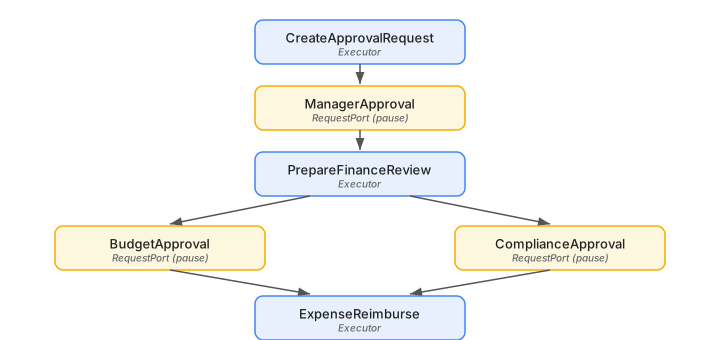
A RequestPort acts like an executor in the graph, but instead of
processing data automatically, it pauses the orchestration and waits for
an external response. When hosted on Azure Functions, the framework
auto-generates HTTP endpoints for checking pending requests and submitting
responses.
Here’s an expense reimbursement workflow with a manager approval gate
followed by two parallel finance approvals:
CreateApprovalRequest createRequest = new();
RequestPort<ApprovalRequest, ApprovalResponse> managerApproval =
    RequestPort.Create<ApprovalRequest, ApprovalResponse>(
        "ManagerApproval");
PrepareFinanceReview prepareFinanceReview = new();
RequestPort<ApprovalRequest, ApprovalResponse> budgetApproval =
    RequestPort.Create<ApprovalRequest, ApprovalResponse>(
        "BudgetApproval");
RequestPort<ApprovalRequest, ApprovalResponse> complianceApproval =
    RequestPort.Create<ApprovalRequest, ApprovalResponse>(
        "ComplianceApproval");
ExpenseReimburse reimburse = new();

Workflow expenseApproval = new WorkflowBuilder(createRequest)
    .WithName("ExpenseReimbursement")
    .WithDescription(
        "Expense reimbursement with manager and finance approvals")
    .AddEdge(createRequest, managerApproval)
    .AddEdge(managerApproval, prepareFinanceReview)
    .AddFanOutEdge(prepareFinanceReview,
        [budgetApproval, complianceApproval])
    .AddFanInBarrierEdge(
        [budgetApproval, complianceApproval], reimburse)
    .Build();
When hosted on Azure Functions, the runtime automatically generates the
following HTTP endpoints for this workflow:
| Method | Endpoint | When generated |
|---|---|---|
| POST | /api/workflows/ExpenseReimbursement/run |
Always, for every registered workflow |
| POST | /api/workflows/ExpenseReimbursement/respond/{runId} |
Automatically, when the workflow contains RequestPort nodes |
| GET | /api/workflows/ExpenseReimbursement/status/{runId} |
Opt-in via exposeStatusEndpoint: true |
External systems (or humans via a UI) can call the status endpoint to
see which approvals are pending, then POST a response to unblock the
workflow:
POST http://localhost:7071/api/workflows/ExpenseReimbursement/respond/{runId}
Content-Type: application/json

{
  "eventName": "ManagerApproval",
  "response": { "approved": true, "comments": "Looks good" }
}
Exposing Workflows as MCP Tools
With the exposeMcpToolTrigger: true option, your workflows become
callable as MCP tools. Other AI agents or MCP-compatible clients can
discover and invoke your workflows:
.ConfigureDurableWorkflows(workflows =>
{
    workflows.AddWorkflow(orderLookupWorkflow,
        exposeStatusEndpoint: false,
        exposeMcpToolTrigger: true);
})
The Functions host generates a remote MCP endpoint at
/runtime/webhooks/mcp with a tool for each registered workflow. The
workflow’s .WithName() and .WithDescription() are used as the MCP
tool name and description. Once exposed, any MCP client can connect to
your Functions app and use these workflows as tools. This includes AI
agents built with other frameworks, IDE extensions like GitHub Copilot,
and any other MCP-compatible client.
More Workflow Patterns
The workflow programming model supports several additional patterns that
work with both in-process and durable execution:
Conditional Routing
Use AddSwitch to route messages to different executors based on the
output of a previous step:
builder.AddSwitch(spamDetector, switchBuilder =>
    switchBuilder
        .AddCase(
            result => result is DetectionResult r
                && r.Decision == SpamDecision.NotSpam,
            emailAssistant)
        .AddCase(
            result => result is DetectionResult r
                && r.Decision == SpamDecision.Spam,
            handleSpam)
        .WithDefault(handleUncertain));
Shared State
Executors can share data through scoped key-value state, useful when
parallel executors need access to the same source data:
// Write to shared state in one executor
await context.QueueStateUpdateAsync(
    fileID, fileContent,
    scopeName: "FileContentState", cancellationToken);

// Read from shared state in another executor
var fileContent = await context.ReadStateAsync<string>(
    message, scopeName: "FileContentState", cancellationToken);
Sub-Workflows
Embed a workflow as an executor inside another workflow for modular,
hierarchical architectures:
var subWorkflow = new WorkflowBuilder(uppercase)
    .AddEdge(uppercase, reverse)
    .AddEdge(reverse, append)
    .WithOutputFrom(append)
    .Build();

ExecutorBinding subWorkflowExecutor =
    subWorkflow.BindAsExecutor("TextProcessing");

var mainWorkflow = new WorkflowBuilder(prefix)
    .AddEdge(prefix, subWorkflowExecutor)
    .AddEdge(subWorkflowExecutor, postProcess)
    .WithOutputFrom(postProcess)
    .Build();
When running on the durable runtime, sub-workflows execute as
sub-orchestrations with proper result propagation.
Wrapping Up
Durable workflows in the Microsoft Agent Framework bring together the
flexibility of AI agent orchestration and the reliability of durable
execution. Starting from a simple console app with in-process execution,
you can progressively add durability, parallel AI agents, and cloud
hosting, all while keeping the same workflow definition.
Here are some useful links to get started:
- Microsoft Agent Framework on GitHub
- Workflow samples
- Azure Functions hosting samples
- Microsoft.Agents.AI.DurableTask on NuGet
- Microsoft.Agents.AI.Hosting.AzureFunctions on NuGet
We’d love to hear what you build! Share your feedback or file issues on
the GitHub repo.
The post Durable Workflows in the Microsoft Agent Framework appeared first on .NET Blog.