Today, we’re excited to announce the general availability of the Azure DevOps MCP Server 
The Azure DevOps MCP Server gives AI assistants secure, contextual access to your Azure DevOps projects so they can help you plan, build, and ship software more effectively. With the Azure DevOps remote MCP Server, you can get started without installing or hosting anything yourself. Simply connect your AI assistant directly to the Azure DevOps hosted endpoint by using streamable HTTP transport and start working with your projects in minutes.
Getting Started
Getting started in simple. Depending on the tools that you are using, you only need to add the following server information to your mcp.json.
{
  "servers": {
    "ado-remote-mcp": {
      "url": "https://mcp.dev.azure.com/{organization}",
      "type": "http"
    }
  },
  "inputs": []
}
There are additional configuration options available, and you can read more in our official documentation.
Supported Clients and Services
The Remote MCP Server is hosted by the Azure DevOps service and uses Microsoft Entra for authentication. Because it relies on Microsoft Entra, it follows the platform’s authentication requirements and constraints. As a result, your Azure DevOps organization must be backed by a Microsoft Entra tenant. Standalone organizations that use Microsoft accounts (MSAs) are not supported.
Support for the Remote MCP Server depends on a client’s ability to authenticate with Microsoft Entra. Today, clients such as Claude Desktop, Claude Code, ChatGPT, Cursor, and similar tools require support for dynamic OAuth client registration or client ID Metadata documents in Microsoft Entra before they can connect to the Remote MCP Server. We are working closely with the Microsoft Entra team to enable this capability. Until then, customers using these clients can continue using the local Azure DevOps MCP Server.
The following clients are supported today with no additional onboarding required:
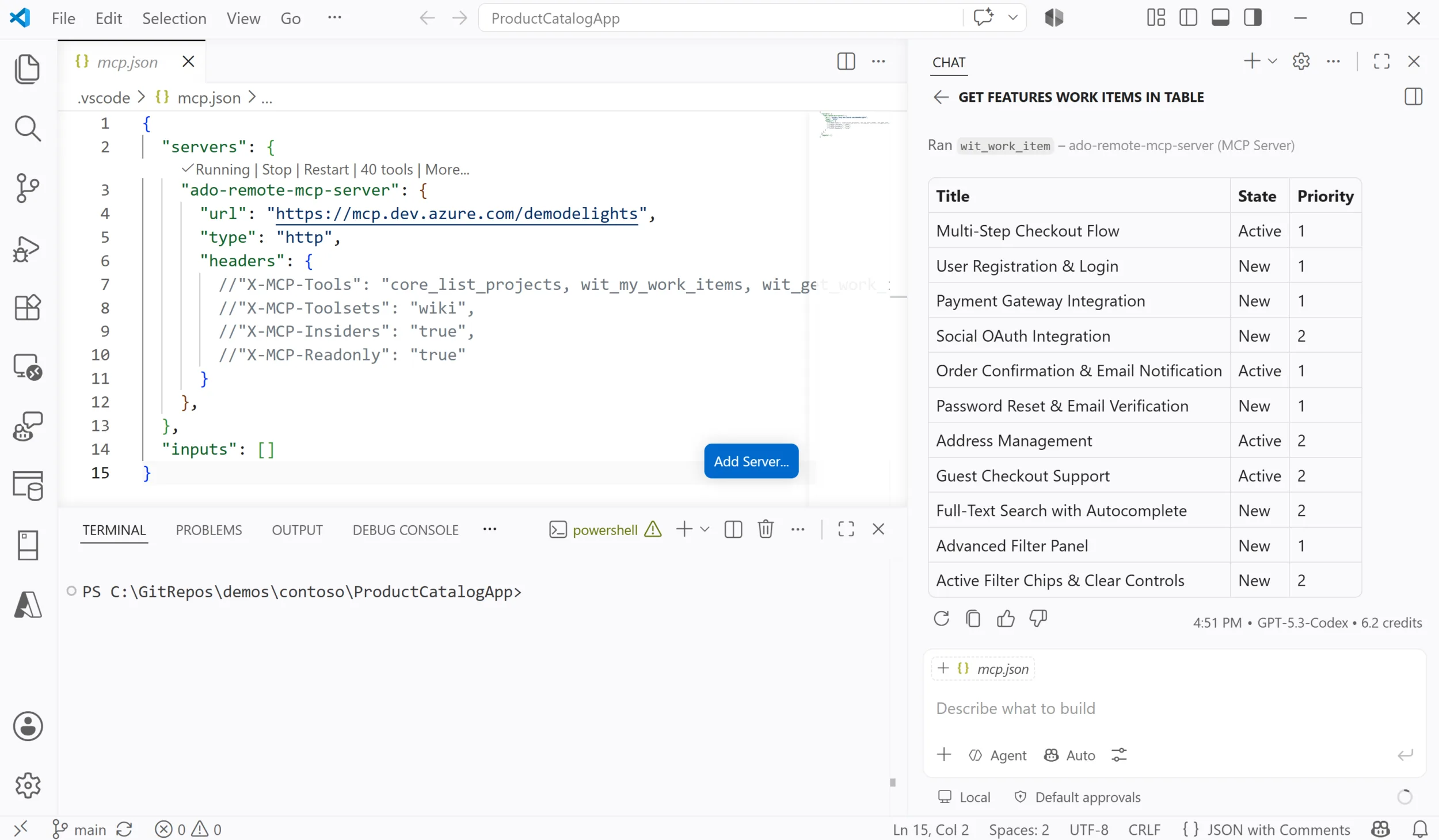
Visual Studio Code with GitHub Copilot
Using the Azure DevOps MCP Server with GitHub Copilot in Visual Studio Code gives Copilot secure access to your Azure DevOps projects, enabling it to understand work items, pull requests, repositories, and pipelines. With this added context, Copilot can provide more relevant responses, automate common tasks, and help you stay focused without leaving your editor.
Microsoft Foundry
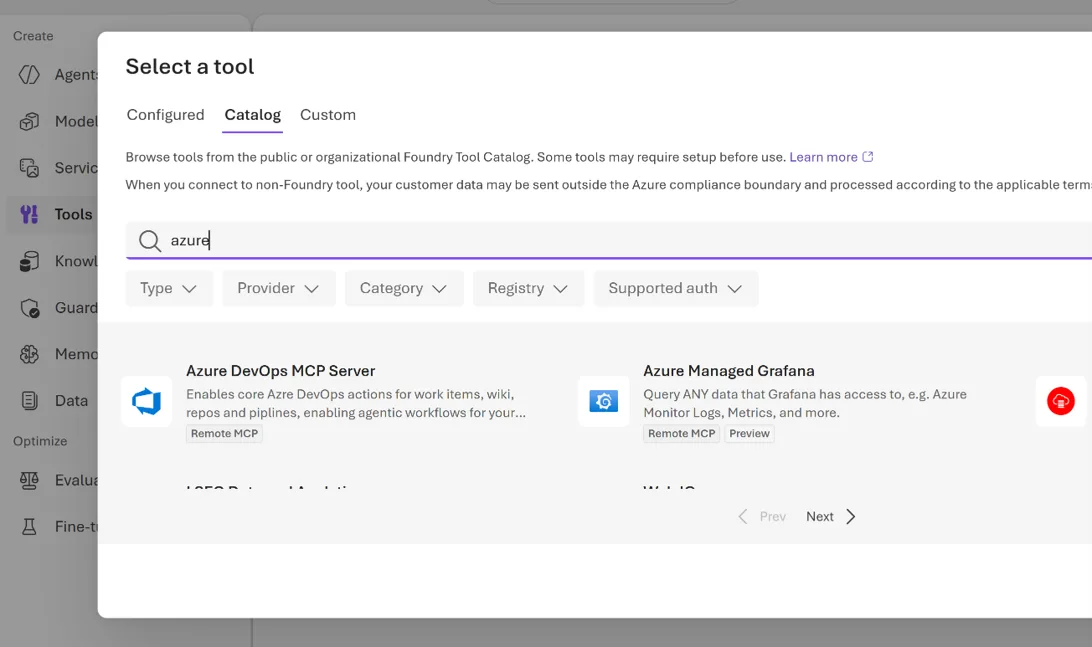
Azure AI Foundry is Microsoft’s end-to-end platform for building, evaluating, and managing AI applications and agents using foundation models, enterprise data, and integrated developer tools. In Foundry you can connect to all of the tools in Azure DevOps from the tools catalog.
Microsoft Copilot Studio 

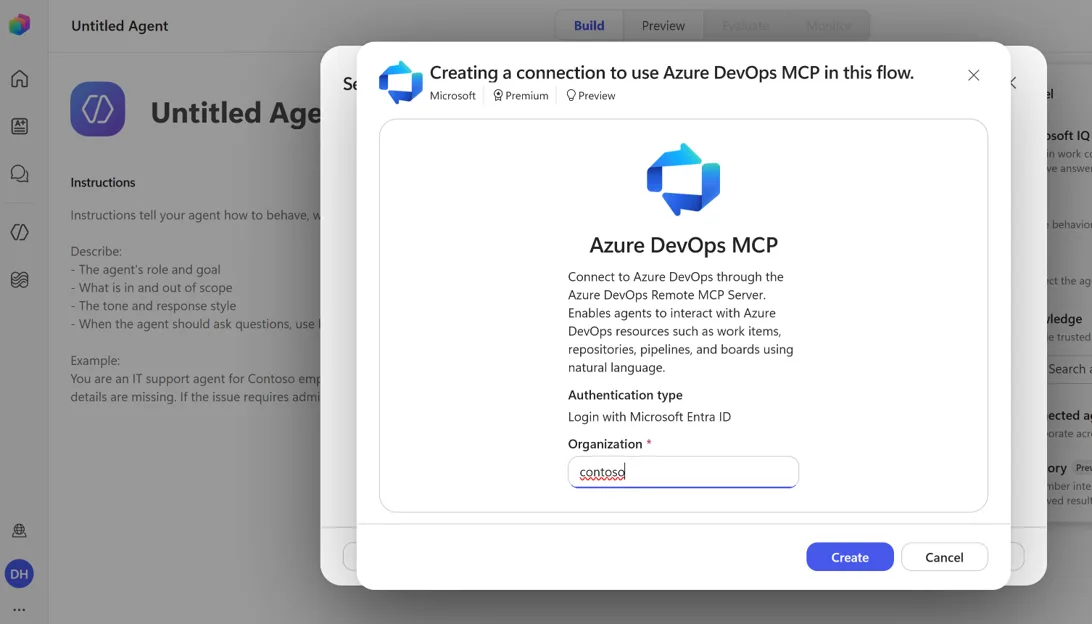
Microsoft Copilot Studio is Microsoft’s low code platform for building, customizing, and deploying AI agents and copilots. It enables organizations to create conversational experiences that connect to enterprise data, automate business processes, and integrate with Microsoft 365 and external services. You can now connect your AI agents to Azure DevOps using the Azure DevOps MCP Server.
Other
The Azure DevOps Remote MCP Server is also supported by additional clients, including Visual Studio, GitHub Copilot CLI, and the GitHub Copilot app.
Local MCP Server
Although we recommend using the Remote MCP Server whenever possible, customers using clients that are not yet supported can continue to use the local Azure DevOps MCP Server.
We remain committed to maintaining feature parity between the local and remote servers. In fact, we recently completed a consolidation of the local MCP Server toolset so that it now aligns with the Remote MCP Server. We will continue to support and maintain the local MCP Server while we work with the Microsoft Entra team to enable the client registration capabilities required for broader Remote MCP Server support.
The post Azure DevOps Remote MCP Server is generally available appeared first on Azure DevOps Blog.